- Goal
- New windows from an application land in the position you chose — automatically, or only when you ask.
- Before you start
- You can snap a window with the resize overlay.
Remember a position
From the resize overlay (Win + Alt + Space), any of these remembers the position for the focused window’s application — and moves the window there at the same time:
- Shift + drag a region on the grid.
- Shift + click a preset thumbnail.
- Shift + press a preset’s shortcut key.
While Shift is held, the selection turns orange and a banner reads “Selection will be remembered for this window” — release the mouse while it shows, and the position is remembered. A toast confirms it, with an Undo button that un-remembers it on the spot.
The position is remembered on the monitor the overlay is on. To have an application’s windows open on a different monitor, press Tab (or PageDown) to move the overlay there first, then Shift + drag. You can’t drag from one monitor to another; clicking on another monitor closes the overlay.
To remember a position without touching the overlay:
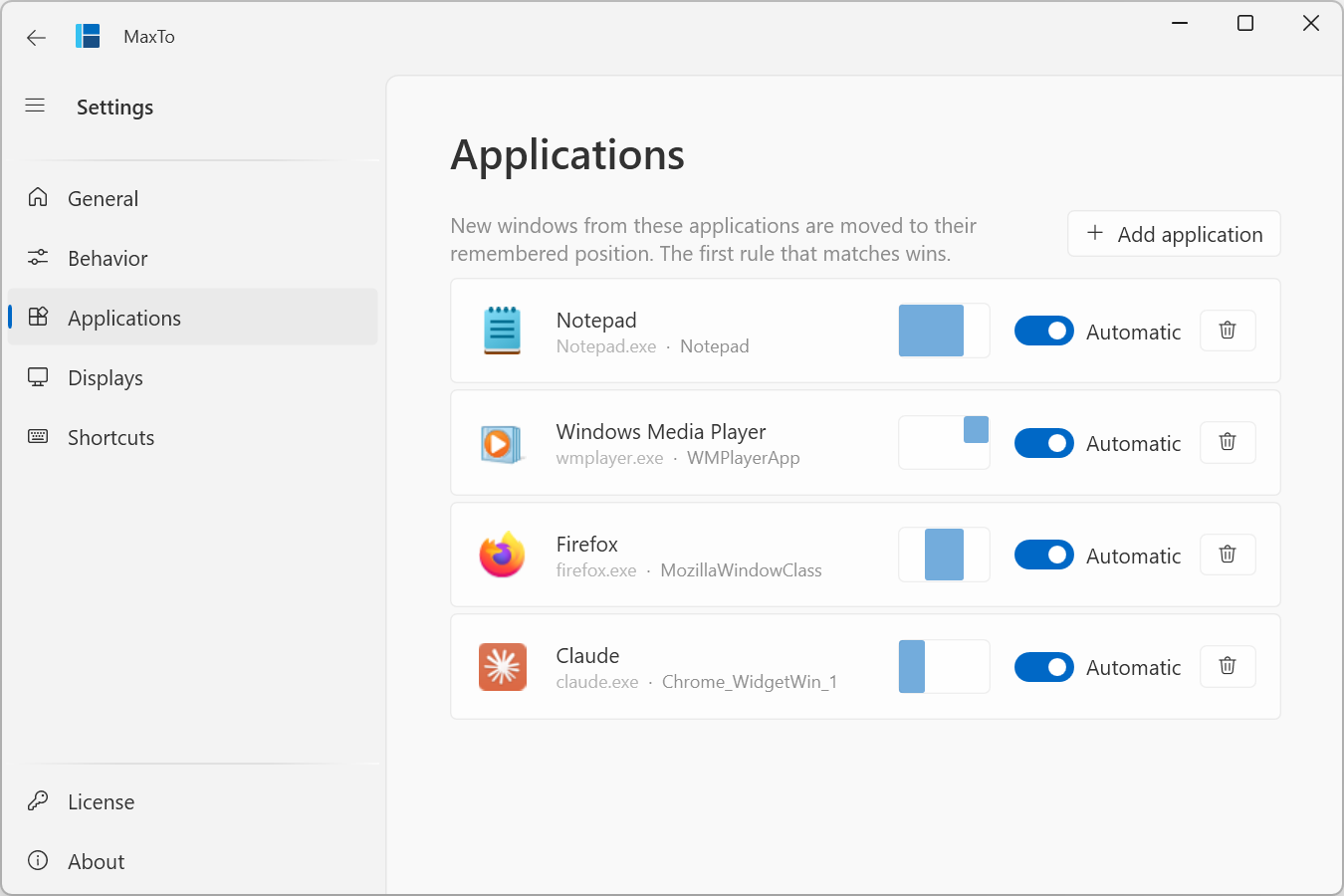
- Open Settings → Applications and click Add application.
- Choose any open window. MaxTo remembers which application it belongs to and where the window is right now.
- Optionally tick Only windows like this one to match only windows of the same type — for example Excel’s spreadsheet windows but not its dialogs.
Recall windows on demand
Recalling moves windows back to their remembered position whenever you ask — useful after a presentation, a dock/undock, or plain window sprawl.
- Recall window moves the active window back to its remembered position.
- Recall all windows moves every window with a remembered position back into place. It’s also in the tray menu.
Neither has a default shortcut. Assign them under Settings → Shortcuts, or run them from the command line:
MaxTo.exe recall window
MaxTo.exe recall all
Recall works even for applications whose Automatic toggle is off. If the active window’s application has no remembered position, Recall window does nothing.
Stop moving windows automatically
If you want a position kept for on-demand recall but don’t want new windows moved on their own:
- Open Settings → Applications.
- Turn off Automatic for that application.
New windows now appear wherever the application puts them; the remembered position is only used when you recall.
Forget an application
- Open Settings → Applications.
- Click the Forget application button on the row you want gone.
MaxTo stops moving that application’s windows and discards the remembered position. (If you just remembered it by accident, the Undo button on the confirmation toast does the same thing faster.)