MaxTo remembering where Notepad windows belong — every new Notepad window moved there automatically, the moment it opens, and any window that wandered off put back with one click.
In Snap your first window you moved a window once. This time you’ll teach MaxTo where an application belongs. We’ll use Notepad, because everyone has it and it’s easy to open fresh windows — any application works the same way.
Open the resize overlay
Open Notepad, then press Win + Alt + Space.
Hold Shift and drag
Hold Shift, then drag across the grid to outline where Notepad windows should live — the left two-thirds of the screen, say.
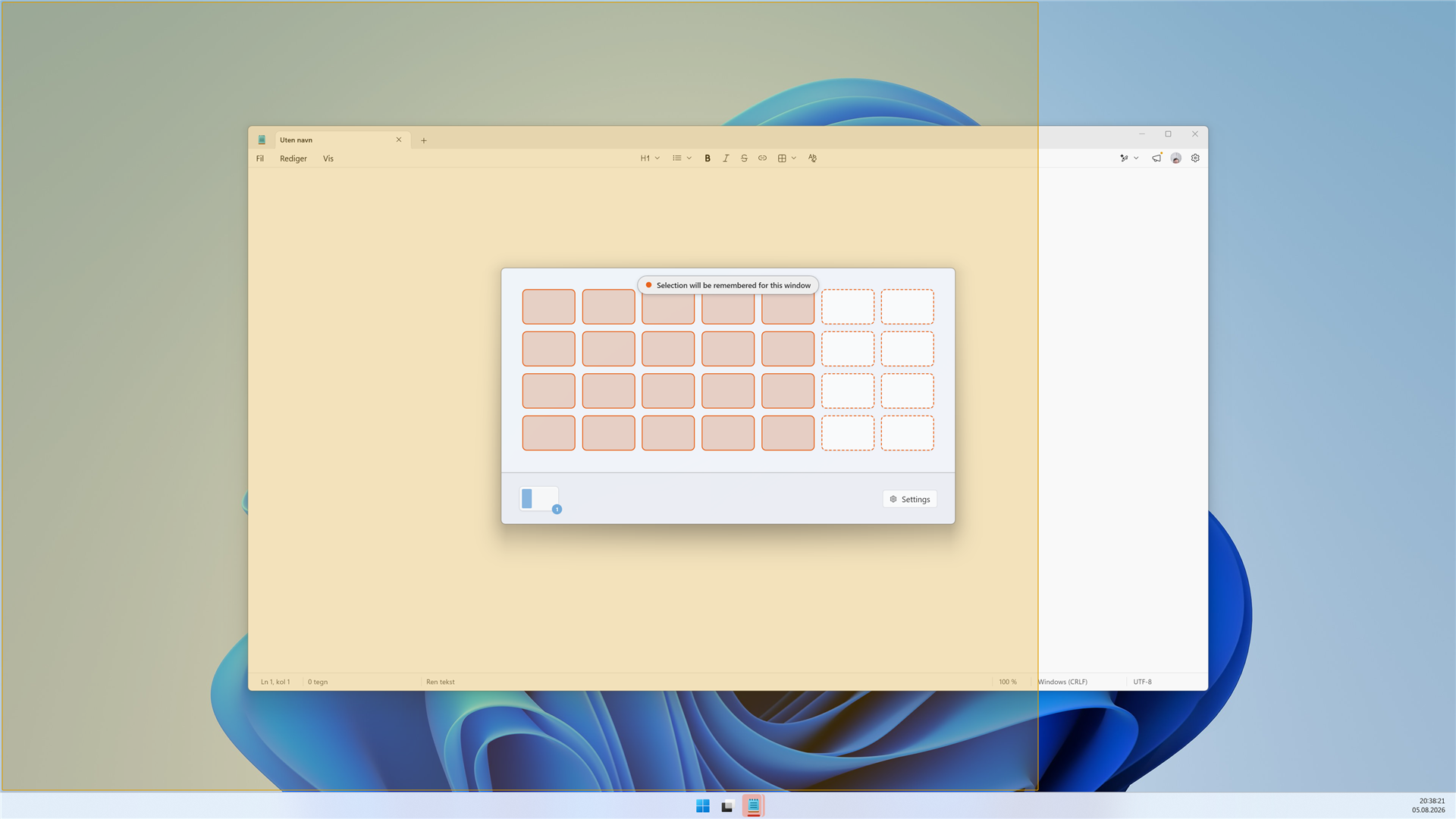
Release to remember
Release the mouse, then release Shift. Two things happen at once: the window snaps to the region you drew, and MaxTo remembers that position for Notepad.
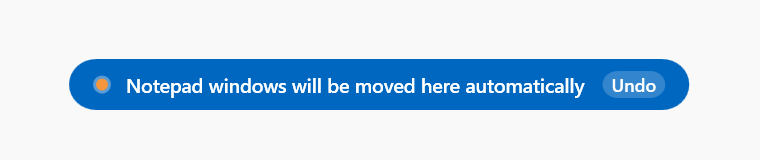
Watch MaxTo move it
Close the Notepad window you just placed. Then open Notepad again.
Recall it
Drag the Notepad window somewhere else, as if it had wandered off. Then right-click the MaxTo icon in the notification area and choose Recall all windows.
Recall all windows and its single-window sibling, Recall window, can also have keyboard shortcuts. They have none by default; Customize your hotkeys shows how to set them.